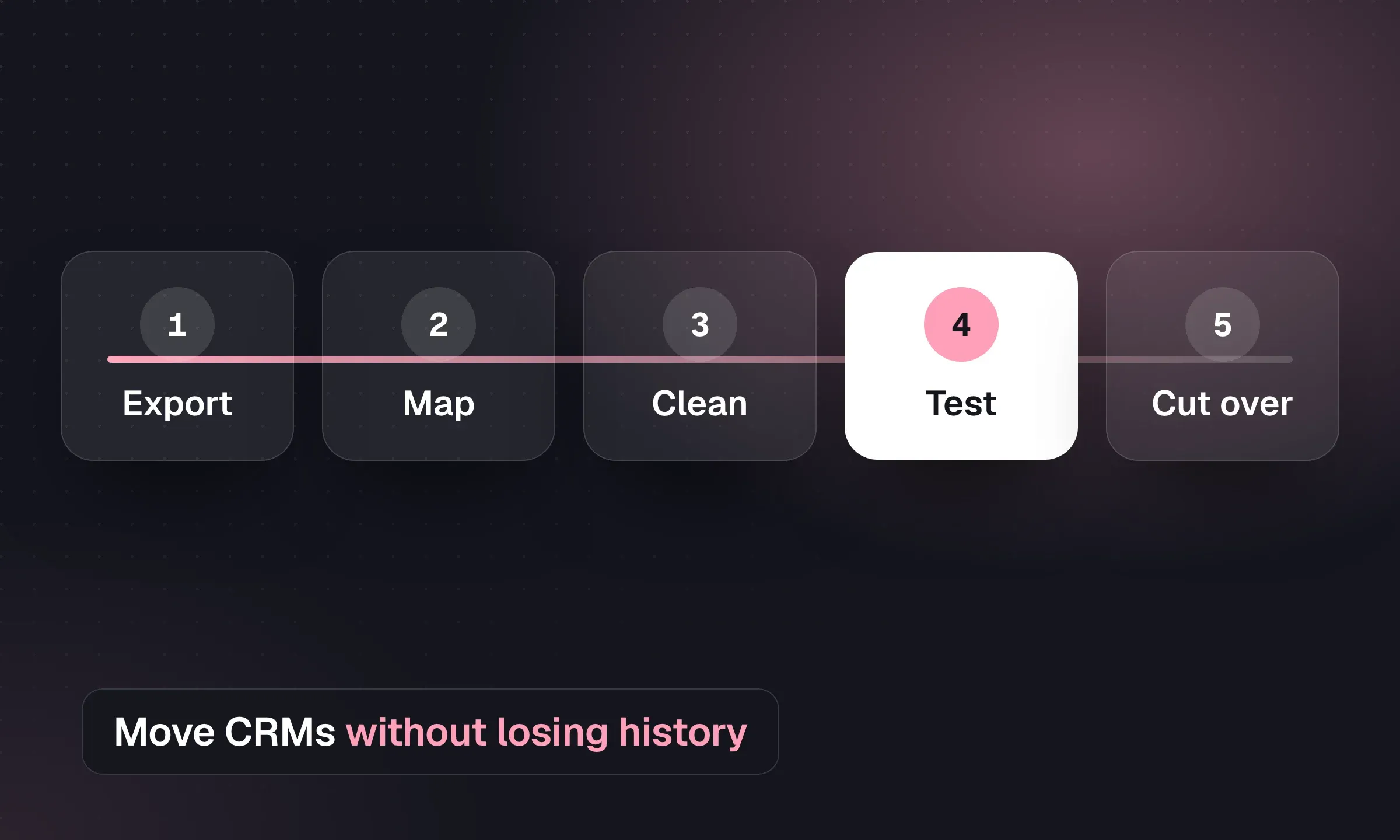
Your recruiters need to find the right CV, conversation history and live jobs when they open the new CRM on day one. Start by confirming export terms and getting a representative sample. Test the links between people, companies, jobs and files as well as the record counts before moving the full database.
CRM migration checklist (CSV)The checklist as a CSV with columns for owner, status and exceptions. Share it with whoever is making the migration decisions.DownloadThe full migration checklist
- Contract read: notice deadline, access end date and data retention after termination
- Full export requested from the current vendor, with attachments
- Inventory of record types, volumes, files and data held outside the CRM
- Mapping sheet agreed for fields, stages, owners and tags
- Legacy IDs preserved for reconciliation
- Retention cut-off agreed and documented
- Dedupe keys and merge rules agreed
- Suppression list built and checked against the import
- Consent status and dates mapped exactly; unknowns left as unknown
- Privacy notice and data processing agreement updated
- CV and attachment counts recorded before export
- Pilot import tested by a recruiter using the test script
- Exceptions logged and mapping rules fixed
- Freeze date and final export window agreed
- Full import reconciled by record type and file count
- Mailboxes and calendars connected for every user
- Sequences, templates and reminders rebuilt
- Careers page, job feeds and integrations repointed
- First-week training and daily check-ins scheduled
- Old system set to read-only, then closed once signed off
Before you start: request the export
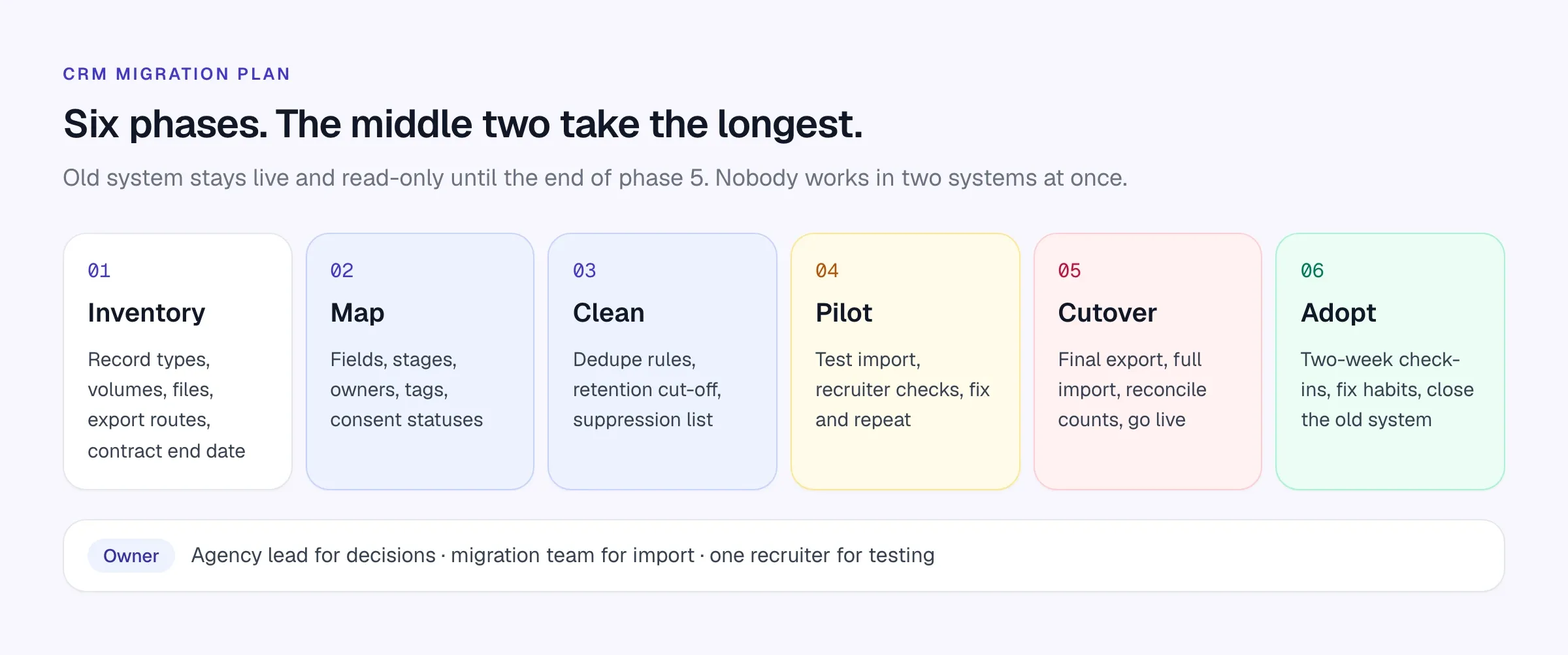
The single most common delay is waiting for data from the old vendor. Many contracts set out how backups are requested, what they cost and how long data is kept after the contract ends. Read yours first, and put the request in before you give notice.
Export notes for Bullhorn, JobAdder and Vincere
These notes summarize each vendor’s published help pages as of October 2026. Processes and fees change, and your contract may differ, so confirm with your account manager.
Scroll the table to see all columns →
| Bullhorn | JobAdder | Vincere | |
|---|---|---|---|
| Full backup route | Signed backup request form, submitted to Support | Request a backup before account deletion | Professional Services request for SQL backup and CVs |
| Format | Microsoft SQL Server file, via secure FTP | Not published; ask what’s included | SQL backup plus CV documents |
| Attachments | Final (full) backup includes all attachments in native format | Not published | Included in the paid full backup |
| Cost | Standard backups free; full backup mid-contract is chargeable | Not published | Paid |
| Self-serve exports | Not covered by the backup guide | Not covered by the FAQ | CSV export of up to 5,000 records per export, emailed; scheduled Data Export in CSV/XLSX |
| Deadline to watch | Data may not be kept more than 60 days after contract end | Data deleted 90 days after termination; backups deleted two weeks after generation | Data Export downloads expire after 30 days |
Bullhorn. Bullhorn’s data backup guide says authorized account contacts complete a Standard or Final backup request form, signed by at least two account and support contacts. The backup is a Microsoft SQL Server file delivered to Bullhorn’s secure FTP server. Standard monthly backups only include recent attachments; the Final backup includes all attachments in native format, is offered automatically when the contract ends and is chargeable if requested mid-contract. Only one backup runs every 30 days, and Bullhorn says it may not retain data more than 60 days after the contract ends. A SQL Server file needs someone who can read it, which is one reason to hand it to a migration team rather than opening it yourself.
JobAdder. JobAdder’s data FAQ says account data is irretrievably deleted 90 days after termination and that you can request a backup before that happens. Backups are deleted two weeks after they’re generated, so download it as soon as it arrives. The format isn’t published; ask which tables and attachments it includes.
Vincere. Admins can export Advanced Search results to CSV, capped at 5,000 records per export and emailed to you, with fixed fields. The Data Export feature runs CSV or XLSX reports on a schedule; downloads expire after 30 days. A full backup with SQL files and CVs is a paid service requested through a Professional Services form.
For other systems, ask the same five questions: what format, which record types, are attachments included, what does it cost, and when is the data deleted.
Phase 1: Inventory what you have
List every record type, roughly how many there are, where the files live and how each one is exported. If you are switching because the team has outgrown the old system, the scaling playbook covers what else should change at the same time. This is also when you discover data outside the CRM: CV folders on a shared drive, a spreadsheet of contractor rates, BD lists in a consultant’s personal Google Sheet.
Scroll the table to see all columns →
| Data group | Include in the inventory | What to verify |
|---|---|---|
| Candidates | Names, contact details, work history, source, owner | Duplicate identifiers, last-contacted dates, field meanings |
| Companies | Clients, prospects and past clients | Stable company IDs, parent/subsidiary links |
| Contacts | Hiring managers and their companies | Correct company relationships, opt-outs |
| Jobs | Title, client, owner, status, fee or rate | Which statuses are still live, which are history |
| Pipeline history | Which candidates went to which jobs, and how far | Whether submissions, interviews and placements are in the export |
| CVs and files | Original documents and attachment references | File counts, formats, which record each file belongs to |
| Notes and activity | Call notes, emails, meeting notes with dates | Export availability and whether the useful context survives |
| Placements | Start dates, fees, bill and pay rates | Reconciliation with finance records |
| Consent and suppression | Consent status, dates, opt-outs, erasure requests | That nothing on the suppression list comes back |
Phase 2: Map fields, stages and owners
For every field, write down what it means in the old system, where it goes in the new one, and any rule that transforms it on the way. “Status” in one CRM can mean candidate availability, pipeline stage or compliance state.
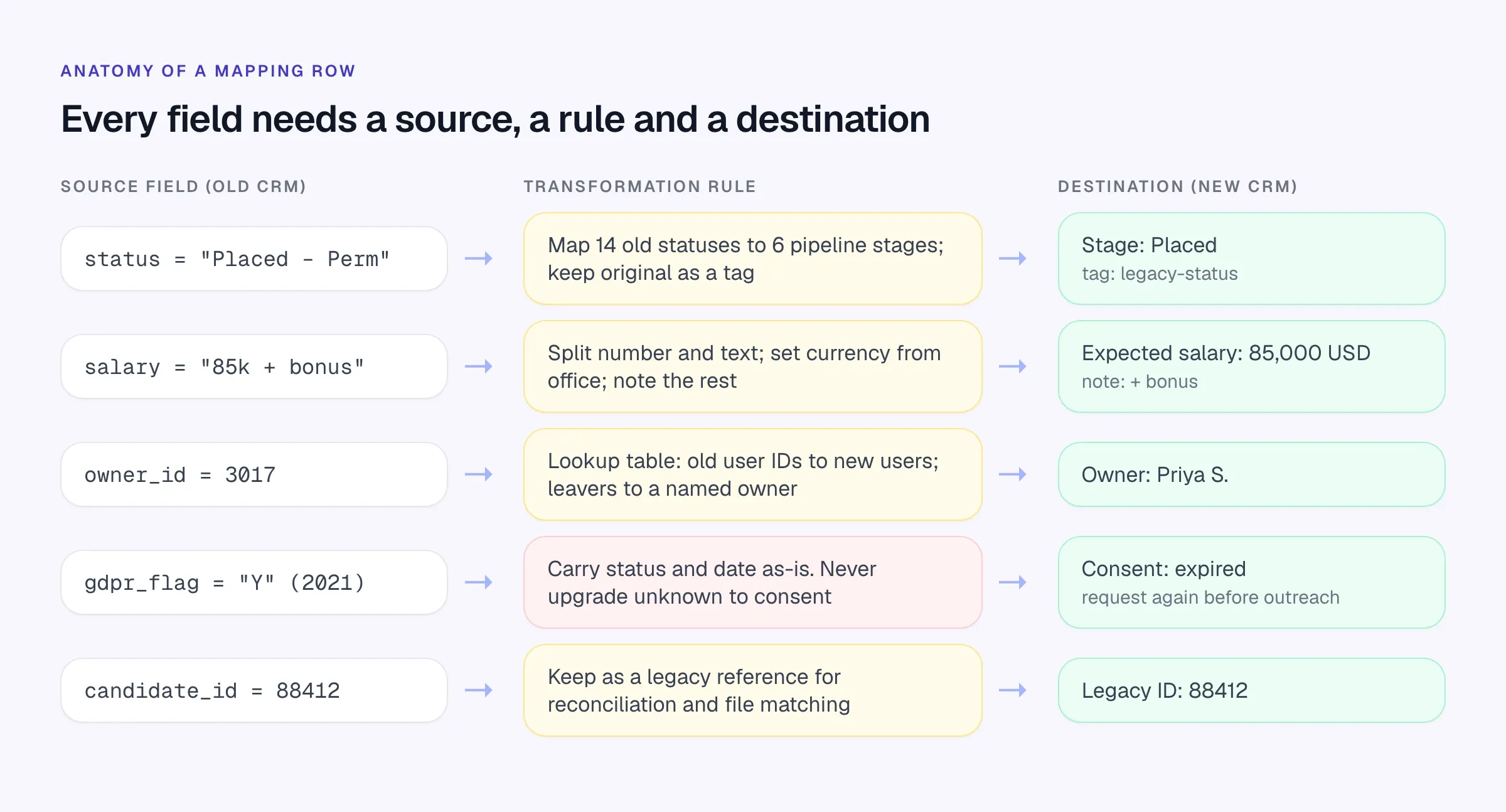
A few decisions come up in every migration:
- Pipeline stages. Old systems accumulate statuses. Map them to the stages your team will actually use, and keep the original as a tag if anyone might need it for reporting.
- Owners. Build a lookup from old user IDs to new users. Records owned by people who have left need a named owner, not a blank.
- Free-text fields. Salary, notice period and availability are often stored as text (“85k + bonus”, “1 month”). Decide whether to split them into structured fields or carry them as notes.
- Tags and categories. Merge near-duplicates (“Java”, “java dev”, “JAVA”) before import. Tags are how recruiters search their own database for a new brief, so a messy tag list costs time on every search for years.
- Legacy IDs. Keep the old record ID somewhere. It makes reconciliation and file matching much easier.
Mapping sheet columns
Source object | Source field | Example value | Meaning (in plain English) | Destination object | Destination field | Transformation rule | Required? | Decision owner | Notes
Candidate     | status       | Placed - Perm | Placed in a perm role       | Candidate          | Tag              | Copy as "legacy: placed-perm"  | No | [Name] |
Candidate     | gdpr_flag    | Y             | Consented (date in gdpr_dt) | Candidate          | Consent status   | Carry status + date exactly    | Yes | [Name] | Never upgrade unknown
Phase 3: Clean, dedupe and decide what stays behind
A migration is the best chance you will get to clean a database, because every record passes through a rule anyway.
Retention cut-off. Decide how old a record can be before it isn’t worth bringing, or should be deleted rather than moved. Data protection law expects you not to keep personal data longer than you need it; the ICO’s storage limitation guidance is a clear summary for UK agencies. A candidate you haven’t spoken to in many years, with no placement history and no recent consent, is a good candidate for deletion. Write the rule down and apply it consistently.
Deduplication. Agree the matching keys and which version wins when two records disagree.
- Exact email match is the strongest key.
- LinkedIn profile URL is next, once URLs are normalized (trailing slashes, http/https, country subdomains).
- Phone number, normalized to an international format.
- Name plus current company only as a flag for human review, never as an automatic merge.
When merging, keep the most recently updated contact details, keep every CV and note from both records, and keep the earliest “created” date.
Suppression list. Anyone who asked to be deleted, unsubscribed or objected to processing must not reappear in the new system. Build a suppression list (usually email addresses and phone numbers) and check the import against it. This is the mistake most likely to turn into a complaint.
Phase 4: Carry GDPR and consent data across exactly
If you recruit in the UK or EU, consent and lawful-basis data are part of the migration, not an afterthought. Most agencies rely on legitimate interests for candidate sourcing and on consent for some marketing; the ICO’s guidance on legitimate interests and consent sets out what each requires.
- Map each consent status and its date to the new system’s equivalent. If the old system has “Y/N” with a date, carry both.
- Never convert “unknown” or blank into “consented”. If you don’t know, the new record should say so, and you should request consent before relying on it.
- Bring across the evidence you have: when consent was given, how and for what.
- Update your privacy notice if the processor (your CRM vendor) changes, and sign the new vendor’s data processing agreement.
In Longlist, consent can be tracked as requested, allowed, denied or expired, with consent expiring on schedule and an “expiring soon” flag 30 days ahead. You can send consent requests in bulk after go-live to the records that need them, filter searches by consent, and delete records on request. See the UK recruitment software page and the GDPR page for details.
Phase 5: Move CVs and attachments
Reconcile CVs separately from candidate records: a correct record count does not tell you whether the files arrived or are attached to the right people.
- Count files before and after. The export should tell you how many attachments exist per record type. Compare that with what lands.
- Check the link to the person. Files are usually matched by the old record ID. A CV attached to the wrong candidate is worse than a missing one.
- Keep originals. Formatted or watermarked versions are useful, but the candidate’s original document is what you need for a new client submission.
- Re-parse where it helps. Parsing original CVs on import can fill in work history and skills that were never typed into the old CRM’s fields.
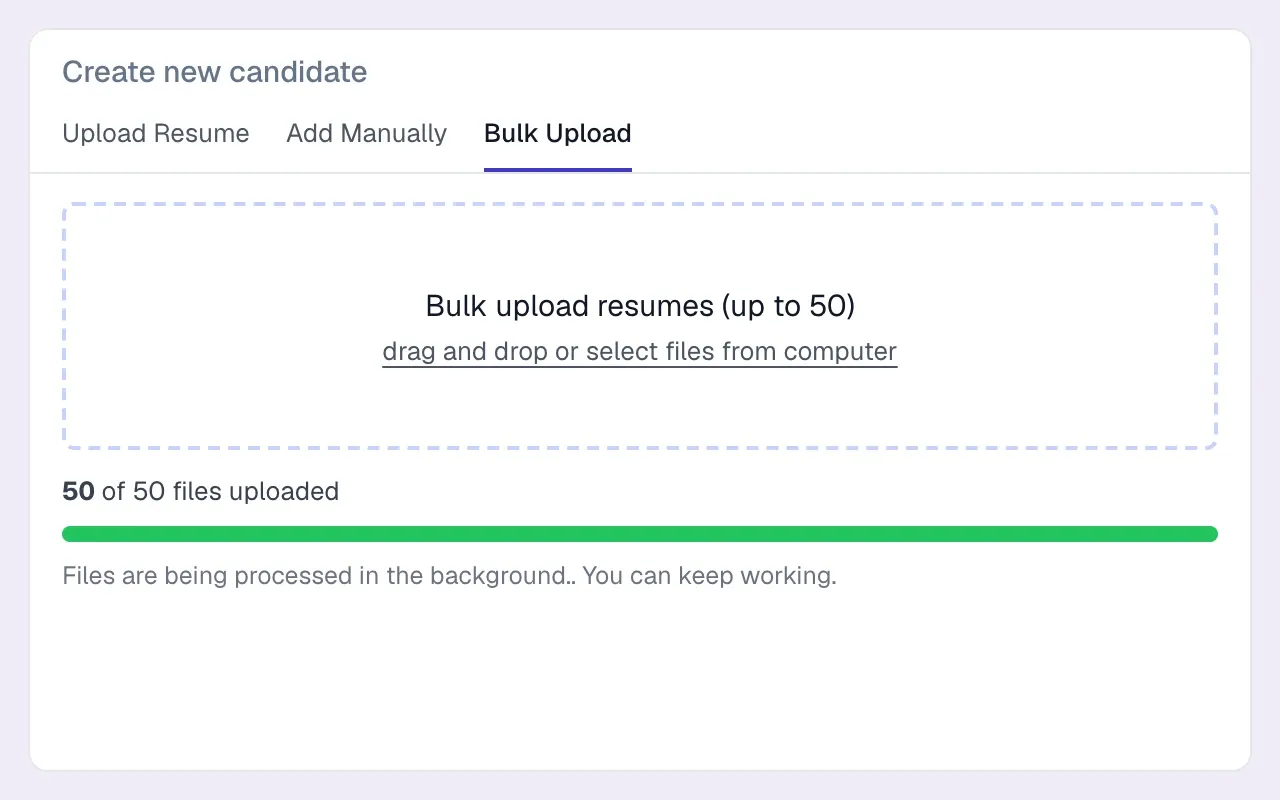
- Loose CV folders. CVs that never made it into the old CRM can be bulk-uploaded and parsed. In Longlist, you can upload up to 50 CVs per batch, parsed and deduplicated by email and LinkedIn URL.
Phase 6: Pilot import and recruiter testing
Import a representative sample first, not the cleanest records. Include a candidate with several CVs, a company with many contacts, a placed candidate with full pipeline history, a known duplicate, a record with consent data and someone on the suppression list (who should not appear).
Then hand it to a recruiter, not just an admin. A matching row count proves very little; recruiters find the problems that matter.
- Search for five candidates you placed last year by name. Each one opens with the right CV
- Search by a skill and a location you use every week. The results look like what you’d expect
- Open a client company. The right contacts, jobs and placements are attached
- Open a job from last quarter. The candidates who were submitted and interviewed are on it
- Check a candidate with two old records. They appear once, with both CVs and all notes
- Check consent status on three UK candidates. Status and dates match the old system
- Search for someone on the suppression list. They are not there
- Check record owners. Nothing is owned by a blank or by someone who has left
- Open notes on a long-standing contact. The useful history is readable
- Log any exception with the record ID, what’s wrong and who decides the fix
When several records have the same error, check the mapping rule before correcting them by hand. Rerun the pilot after a rule change to see whether it fixes the whole affected group.
Phase 7: Cutover
Cutover is a short, planned window: take the final export, import everything, reconcile, and switch the team over in one move.
- Freeze date. Pick a day (Friday afternoon is common) after which nobody creates or edits records in the old system.
- Final export. Take the full export, or a delta of everything changed since the pilot export if your migration team agrees that approach.
- Full import. Run the agreed mapping, dedupe and suppression rules on the full data set.
- Reconcile. Compare counts per record type and per file type. Every gap should be either an intentional exclusion (retention cut-off, suppression, merged duplicates) or a logged exception.
- Connect mailboxes and calendars. Each recruiter connects Gmail or Outlook so new emails sync to the right records from the first morning.
- Rebuild automations. Email sequences, job-stage emails and task reminders don’t migrate as data; rebuild the ones you actually used.
- Repoint integrations. Careers page, job feeds, contact-lookup tools and any forms that created records in the old system.
- Set the old system to read-only. Keep access until the reconciliation is signed off and the backup is stored safely.
Phase 8: Adoption in the first two weeks
Migrations fail quietly when the team keeps a foot in the old system. Plan the first fortnight as carefully as the import.
- Day one: a 30-minute session covering search, the candidate record, the job pipeline and logging a call. Nothing else.
- First week: a daily ten-minute check-in for questions and fixes. Collect every “where did X go?” and answer it once for everyone.
- Saved searches and tags: recreate the searches each consultant used daily, before they need them.
- Watch the activity: CVs sent, interviews and calls should appear in reports by the end of week one. A consultant with no recorded activity is still working somewhere else.
- Close the old system once reconciliation is signed off. As long as it’s open, someone will use it.
Remember that reports in the new system start from the go-live date. If you run a weekly KPI scorecard, restart trailing averages from the cutover rather than comparing across systems.
Migrating to Longlist
Longlist’s team handles data migration for free. We work from full exports (including Bullhorn SQL backups), CSV exports, spreadsheets and bulk CV folders, map candidates, contacts, companies, jobs, placements, notes and CVs, parse the CVs and flag duplicates by email and LinkedIn URL. You review a pilot before the full import.
What doesn’t come across as data: automations (rebuild them as email sequences), and timesheet, payroll and invoicing history, which belongs in your back-office system. Which historical activity carries over depends on your source export, so we confirm that during scoping rather than promising it up front.
Plan your migration with the Longlist team
Send us your current system, approximate record and file counts, and the history your team relies on. We’ll scope the move against your actual export.
If you are still choosing where to move, compare the options on the Bullhorn, JobAdder and Vincere comparison pages, and budget the full switch with the recruitment software cost guide. The recruitment CRM vs ATS guide is useful if the migration is also a chance to rethink which system holds what.